How do you use Seedance 2.5? A complete tutorial on generating a 30-second AI product video with PixPix.
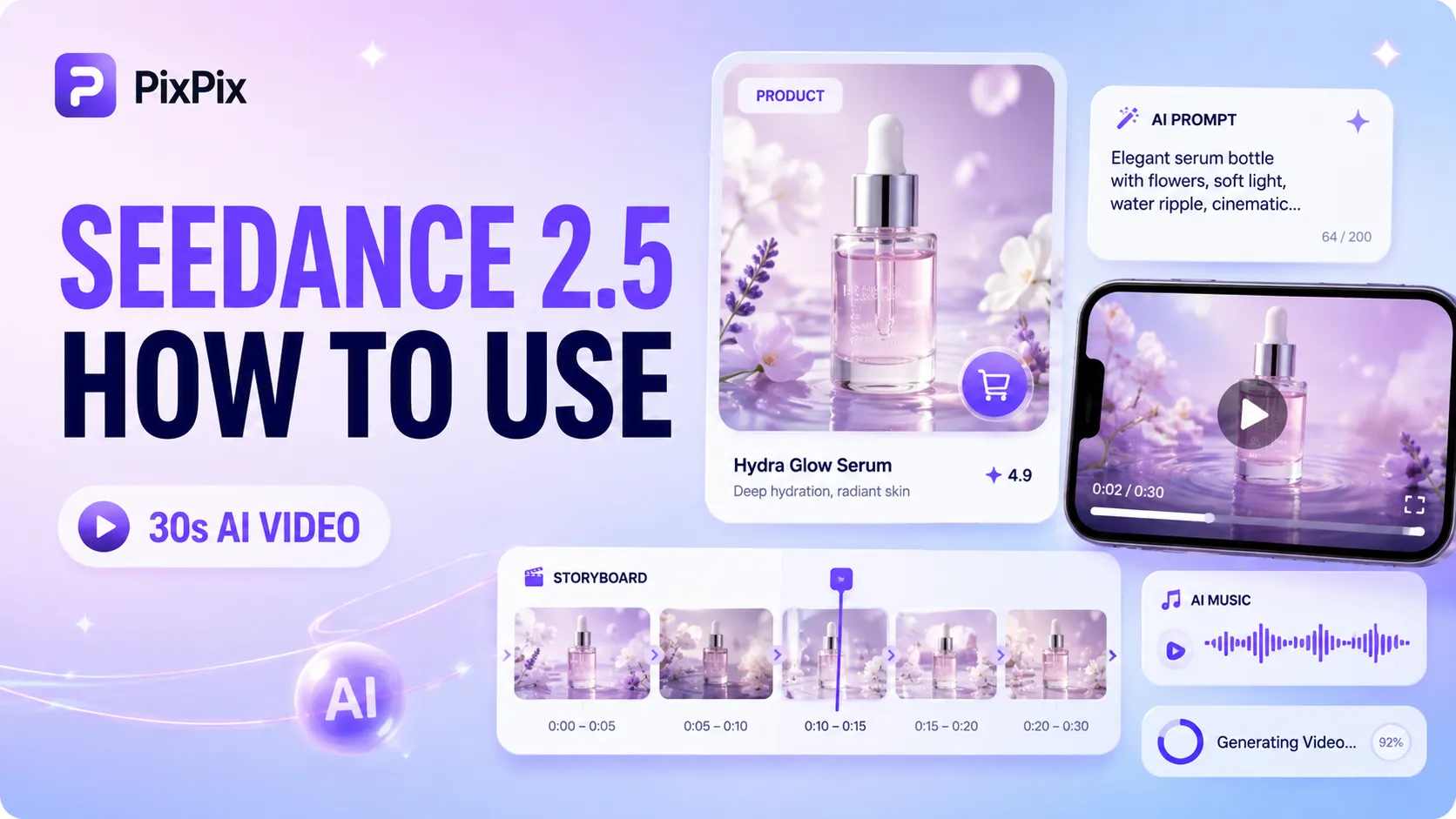
Seedance 2.5 is now directly available within PixPix . For e-commerce sellers and content creators, the most practical aspect of this upgrade isn’t just longer videos—it’s that images, videos, audio references, long‑take generation, and subsequent editing are now integrated into a single creative workflow.
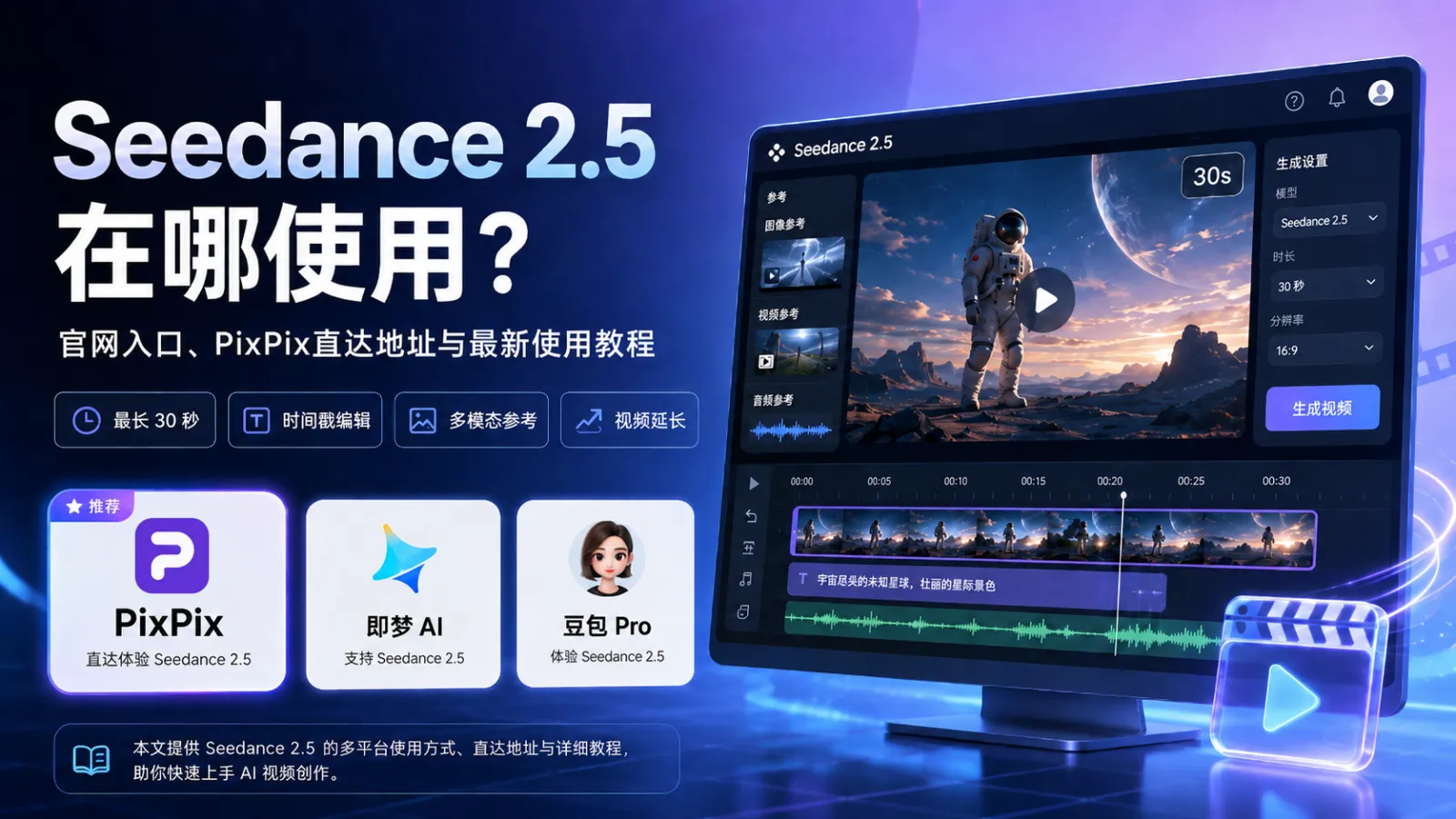
On July 31, 2026, ByteDance officially released Seedance 2.5. The new version can generate up to 30 seconds of audiovisual content in a single run and supports multiple rounds of video extension; additionally, users can include up to 30 images, 10 video clips, and 10 audio tracks as reference materials in one generation.
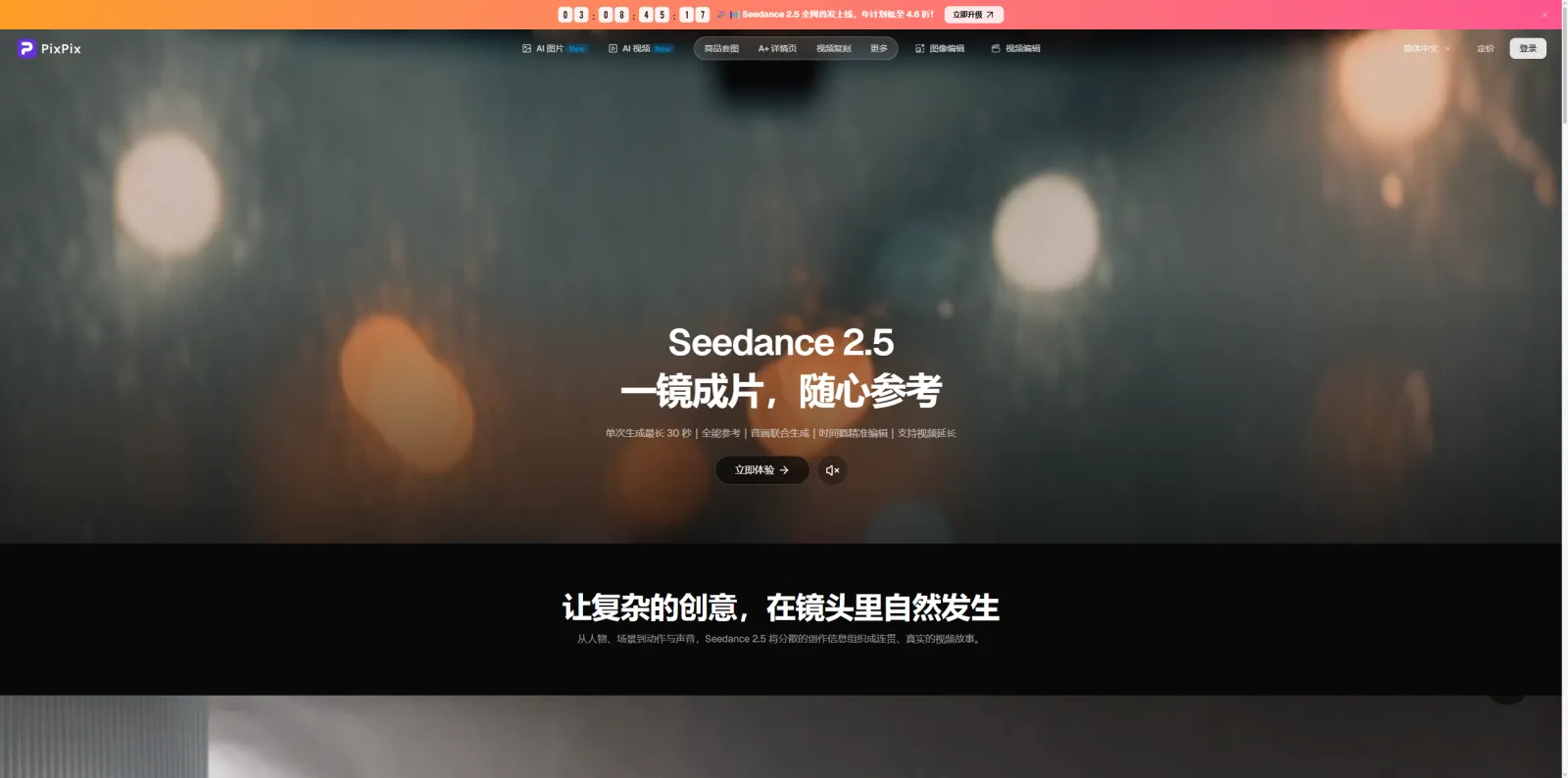
Currently, PixPix has launched the Seedance 2.5 creation page, allowing users to control the output through text, images, videos, and audio, while also offering features like video lengthening and timestamp editing.
I. What has been upgraded in Seedance 2.5?
If you only look at the specs, the 30-second limit is the most obvious change. But when it comes to actual production, the three capabilities below deserve even more attention.
1. A single generation can now produce up to 30 seconds, truly enabling the telling of complete stories
In the past, creating AI videos often required generating multiple 5- or 10-second shots separately, then assembling them into a full advertisement through editing.
Seedance 2.5 increases the maximum single-video duration from 15 seconds to 30 seconds, while enhancing scene transitions between shots, maintaining subject consistency, and ensuring audio‑visual synchronization. The platform also allows for further extension of existing videos.
For product advertisements, this means a single video can now seamlessly incorporate:
Product appearance → Model usage → Feature demonstration → Close-up shots of the product → Brand finale.
There’s no need to regenerate each shot individually.
2. Images, videos, and audio can be used together as references
The biggest challenge in creating AI product videos usually isn’t “whether the visuals are appealing,” but rather ensuring that products, people, and actions appear exactly as requested.
Seedance 2.5 supports simultaneously processing images, videos, and audio. Images help define the appearance of products and characters, videos provide motion, camera angles, and pacing cues, while audio contributes to sound design and overall atmosphere. Officially, the maximum number of reference items per generation is 30 images, 10 video clips, and 10 audio tracks.
For example, when producing a skincare ad, you could provide:
Front and side views of the product;
Model photos;
A reference video showcasing camera movements;
Background music or sound effects.
Then, using prompts, instruct the model on how each piece of reference material should be applied.
3. If a particular shot isn’t satisfactory, it can be selectively edited
Seedance 2.5 enhances video editing capabilities at the timestamp level, allowing users to specify exact time segments for modification and adjust characters, actions, plot elements, sounds, or camera movements—rather than regenerating the entire video. The model also strengthens abilities related to green screens, viewpoint adjustments, and reference-based editing.
This feature is especially valuable for commercial videos that are already 80–90% complete.
II. How do you use Seedance 2.5 in PixPix?
The actual process can be divided into three steps.
Step 1: Prepare reference materials
After entering the PixPix Seedance 2.5 creation page, upload images, videos, or audio files according to your video requirements.
For product videos, it’s recommended to prepare at least one clear original image of the product.
To further enhance product consistency, you can continue adding additional reference materials:
Front view of the product;
Side view of the product;
Close-up of packaging details;
Image showing the logo or label clearly visible;
Reference materials such as people, scenes, or actions.
The purpose of reference images is not to include as many elements as possible, but rather to help the model understand “what must remain unchanged.”
Step 2: Write the Prompt as a Shot-by-Shot Script
Compared to a single sentence like:
“Please generate a high-end skincare advertisement for me.”
it’s better to directly write it out as a timeline.
For example:
Prompt Example:
Generate a 20-second high-end skincare ad video, keeping the proportions of the serum bottle, white packaging, silver cap, and logo position exactly as shown in the reference image.
0–5 seconds: The product rests at the center of a light gray stone countertop, with soft morning light streaming in from the right side of the frame. The camera slowly moves closer to the product, creating subtle reflections on the water surface.
6–12 seconds: A female model picks up the serum and applies it to her cheek. Her movements appear natural, and the camera smoothly transitions from a frontal shot to a side view, while maintaining the original product packaging.
13–17 seconds: Switch to macro shots of the bottle and dropper, highlighting the glass material, the flowing serum, and the play of light.
18–20 seconds: The product returns to the center of the frame, and the camera slowly pulls back, preserving an overall clean, restrained, and upscale commercial photography style.
What matters most here isn’t piling on adjectives like “8K resolution,” “cinematic feel,” or “high-end sophistication,” but rather clearly specifying in the when each action occurs, how the camera moves, and what must remain unchanged.
Even Seedance 2.5’s official long-take examples extensively employ similar time-based descriptions, using timestamps such as “0–5 seconds” or “6–10 seconds” to precisely control actions and camera transitions.
Step 3: Generate, then refine based on feedback
Once you’ve finalized your prompt, select the aspect ratio and video length, then begin generating.
After receiving the first draft, don’t rush to redo the entire video—start by checking:
Has the product’s appearance changed?
Are the logo and packaging noticeably distorted?
Are the character’s movements reasonable?
Do the characters and settings match across different shots?
Are there any abrupt cuts or sudden transitions during scene changes?
Is the sound effect synchronized with the character’s actions?
If only one segment has issues, you can further specify the exact location needing adjustment via timestamps.
For example:
“Only modify seconds 6–10, leaving the product, the character’s clothing, background, and other shots unchanged. Make the model’s motion of picking up the bottle more natural, ensuring fingers do not obscure the brand logo.”
This approach provides clearer instructions than regenerating the entire video.
III. Who is Seedance 2.5 particularly suited for in e-commerce content?
Based on its current capabilities, it is well-suited for the following types of content.
Product showcase video
A single product image can be further used to generate rotating displays, scene-based presentations, close-up shots, and demonstrations of product usage.
Model usage video
Clothing, beauty products, accessories, home goods, consumer electronics, and more can all be integrated into real-life usage scenarios with models.
TikTok and Reels short ads
15–30 seconds is a common length for short-form advertising videos, allowing you to seamlessly incorporate an opening sequence, key selling points, usage scenarios, and product showcases within a single clip.
Multi‑shot brand advertisements
By clearly defining each shot and storyline along a timeline, this approach delivers a more cohesive narrative than generating multiple short clips separately and then stitching them together.
How can AI‑generated product videos be made more stable?
For e‑commerce videos, there’s one often overlooked issue: a visually appealing shot doesn’t necessarily mean the product is presented correctly.
Especially for packaging, accessories, apparel, and consumer electronics, we recommend carefully reviewing the output after generation:
product’s aspect ratio;
logo placement;
packaging text;
bottle caps, zippers, buttons, connectors, and other structural details;
product color;
material and reflective properties;
how people actually hold or wear the product.
Also, avoid simply stating “maintain product consistency” in your prompt.
A more effective way to phrase it is:
“Maintain the same bottle height ratio, silver cap, white front label, logo position, and transparent glass material as shown in the reference image.”
Clearly specifying what “consistency” means makes it easier for the model to understand.
IV. Why use Seedance 2.5 at PixPix?
If your goal is merely to test Seedance 2.5’s one‑time generation capability, the focus naturally lies on the model itself.
However, e‑commerce creative assets rarely stop once a single video has been generated.
PixPix offers a full suite of AI‑powered visual tools for e‑commerce, including AI images, AI videos, product photo sets, A+ detail pages, advanced product retouching, video repurposing, model styling, and livestream shopping videos. This allows you to seamlessly build upon an original product image—continuing to create both image and video assets without constantly switching between multiple platforms.
For example:
Original product image
↓
generate product scene images
↓
create model images
↓
use Seedance 2.5 to turn these into video
↓
continue producing livestream shopping videos and marketing materials
For sellers who need to continuously update their product listings and produce large volumes of content, this seamless workflow is far more practical than generating a single polished video on its own.
V. Common Questions about Seedance 2.5
1. How long of a video can Seedance 2.5 generate in one go?
The maximum length per generation is 30 seconds, and it also supports extending the video in multiple rounds based on an existing clip.
2. Does Seedance 2.5 support creating videos from images?
Yes, it does. Seedance 2.5 can use text, images, videos, and audio as input and reference materials.
3. Can Seedance 2.5 reference existing videos?
Yes, it can. Reference videos help the model better understand movements, camera angles, composition, and overall visual language.
4. Can Seedance 2.5 edit already generated videos?
Yes, you can edit specific segments of the video, making targeted adjustments to characters, actions, audio, storyline, and camera shots.
5. Is Seedance 2.5 suitable for creating product videos?
Absolutely. It’s especially well-suited for product advertisements that require simultaneous control over product appearance, human motion, multiple camera angles, and a complete narrative lasting 15–30 seconds, fully leveraging its multimodal referencing capabilities and extended video length.
Summary
The changes brought by Seedance 2.5 go beyond simply “extending AI-generated videos from 15 seconds to 30 seconds.”
What truly boosts creative efficiency is this: longer videos, diverse reference materials, timeline controls, and localized editing are now being combined.
For e-commerce sellers, starting with original product images, you can first let AI identify the product and figures, then fine-tune camera angles, motions, and audio, ultimately producing a video that closely resembles a finished advertisement.
Currently, you can already select Seedance 2.5 within PixPix to begin your creative process.

AI Image Tool Built for E-commerce Teams
For new product launches, advertising, and promotional campaigns, use AI to generate product images, scene visuals, ad creatives, and short video assets — making content production faster.